Agent Features
🎧
Audio Guide
1. Introduction
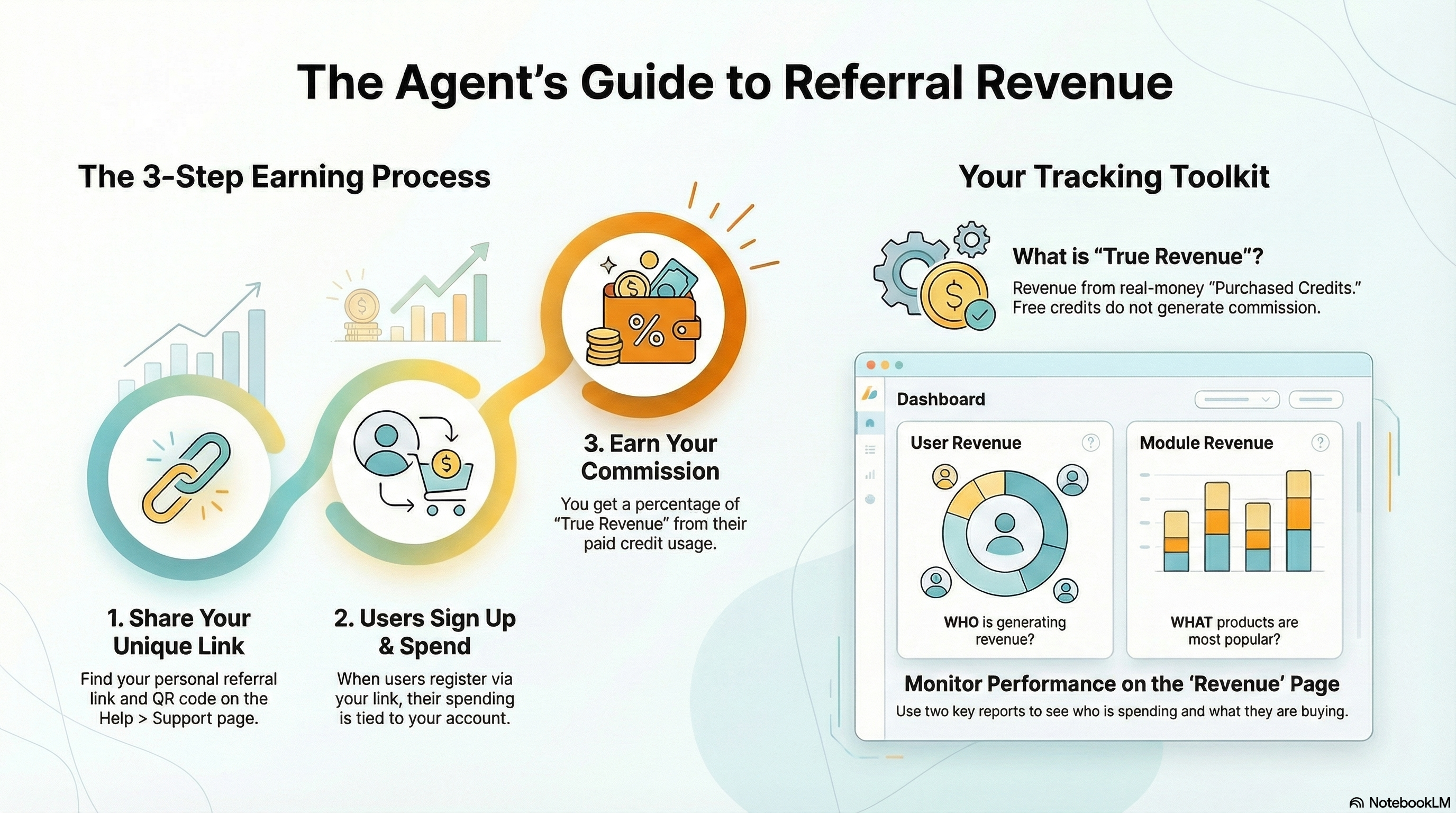
Welcome to the Agent Program! As an Agent, you earn commissions by referring new users to the platform. This guide explains how to track your referrals and monitor the revenue they generate.
2. Referring Users
- Access the Invite Tool: Navigate to the Help page and select the Support tab.
- Note: The referral feature is only visible if referrals are enabled by the administrator.
- Get Your Link: You will see your unique Referral Link (e.g.,
?ref=YOUR_ID) along with a QR Code that others can scan to sign up directly. - Share: Use the available buttons to copy the link or share it via email and social apps.
- Track Progress: The referral card displays your current referral usage against your monthly limit (e.g., "3 of 10 referrals used"). A warning appears when you reach 75% of your limit. If your administrator has configured unlimited referrals, an "Unlimited" badge is displayed.
- Attribution: When a new user signs up using your link, they are automatically linked to your account as a "Referred User".
3. Tracking Revenue
Your revenue dashboard is located on the Revenue page (click "Revenue" in the top navigation). This page offers two dedicated tabs to monitor your earnings.
3.1. Understanding Your Commission
Your earnings are based on the Agent Revenue Share percentage configured by the administrator. This percentage is applied to the True Revenue generated by your referred users.
- True Revenue: Defined as the cost of deployments paid for using Purchased Credits (credits bought via Stripe or Flutterwave).
- Excluded: Costs covered by free "Awarded Credits" (e.g., sign-up bonuses, referral awards) do not generate commission.
3.2. My Referral Revenue Tab
This detailed report shows you exactly who is generating revenue among your referred users.
- Filters: Filter by specific users (multiselect) and date range.
- Data Points: View User Email, Module Name, Created At date, Credit Cost, and the Revenue generated.
- Commission: The revenue shown is your calculated share based on the Agent Revenue Share percentage.
- Export: Click the Export to CSV button to download the report for offline analysis.
3.3. Module Revenue Tab
This report gives you a view of what is selling across your referrals.
- Filters: Filter by Module Name and date range.
- Data Points: View Module Name, Created At date, Credit Cost, and Revenue.
- Insight: Identify which products are most popular among your referrals to optimize your marketing efforts.
- Export: Click the Export to CSV button to download the report.
4. Help & Support
Visit the Help page for additional resources:
- Support Tab: Access the referral invitation tool and contact support.
- Platform Demos Tab: View demonstrations of platform features.
- Platform Workflows Tab: Browse documented platform workflows.
- Platform Guides Tab: Access user guides and documentation.
- Platform Features Tab: Explore the platform's feature catalog.